The Problem
I run CachyOS with Hyprland (via HyDE). My laptop's second monitor is physically rotated to portrait, and while Hyprland handled it properly after login, SDDM (the login manager) insisted on showing it in landscape with no rotation and no way to turn it off through the config file.
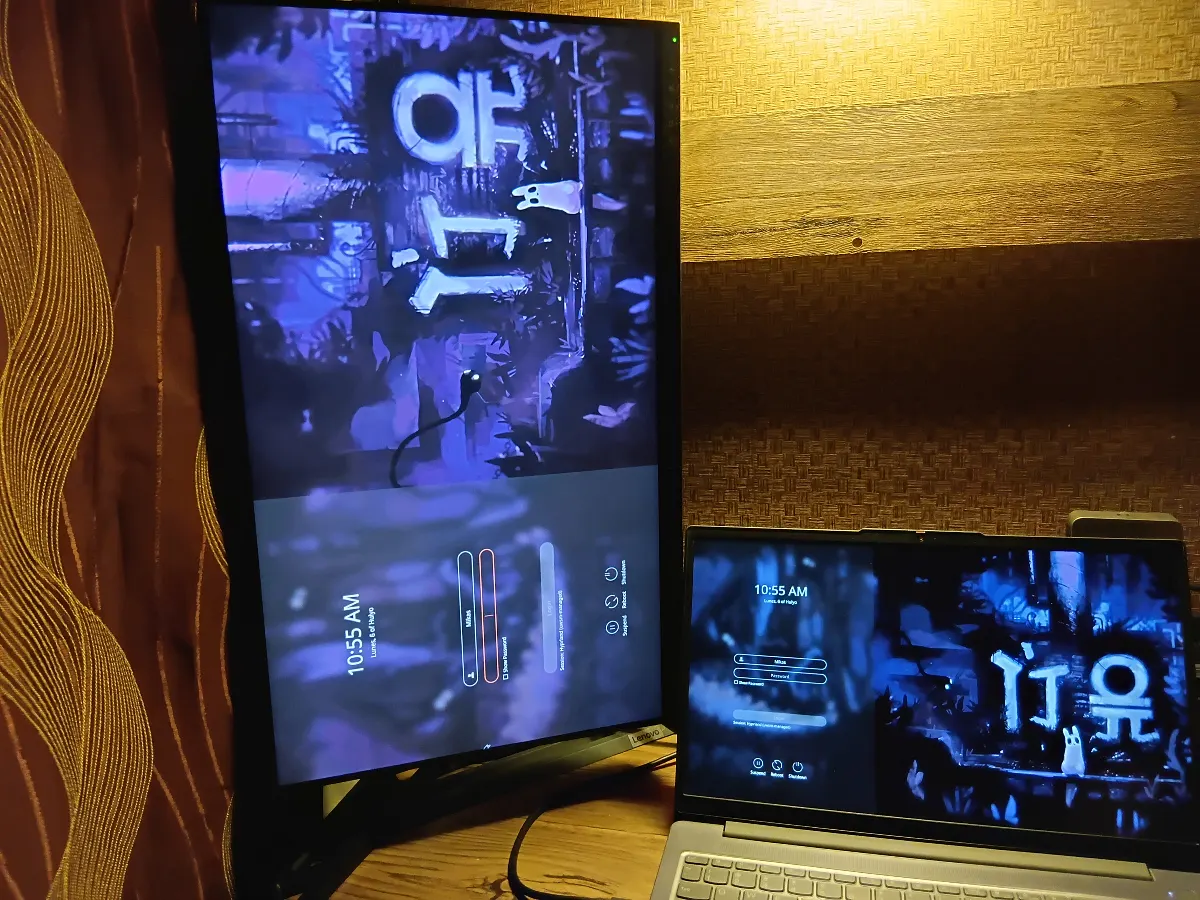
I tried to live with it for months, but I can't anymore man.

The Investigation
SDDM's config (/etc/sddm.conf.d/the_hyde_project.conf) was minimal with no monitor settings. The session was Wayland, but SDDM itself spawns an Xorg server. That meant xrandr commands in SDDM's Xsetup script would work, but only if we used the right X11 output names (which differ from Wayland names).
First Attempt: Static xrandr
I installed xorg-xrandr and added xrandr --output DP-4 --off to /usr/share/sddm/scripts/Xsetup. No dice though. DP-4 is the Wayland name. Xorg calls the same physical port something else.
The Solution: Go Dynamic
Why guess names? Just turn off every connected display that isn't the laptop panel. We can use a pattern to match common internal display designations like eDP, LVDS, or LCD so it works across different hardware configurations:
xrandr | grep " connected" | grep -vE "eDP|LVDS|LCD" | awk '{print $1}' | while read m; do
    xrandr --output "$m" --off
done
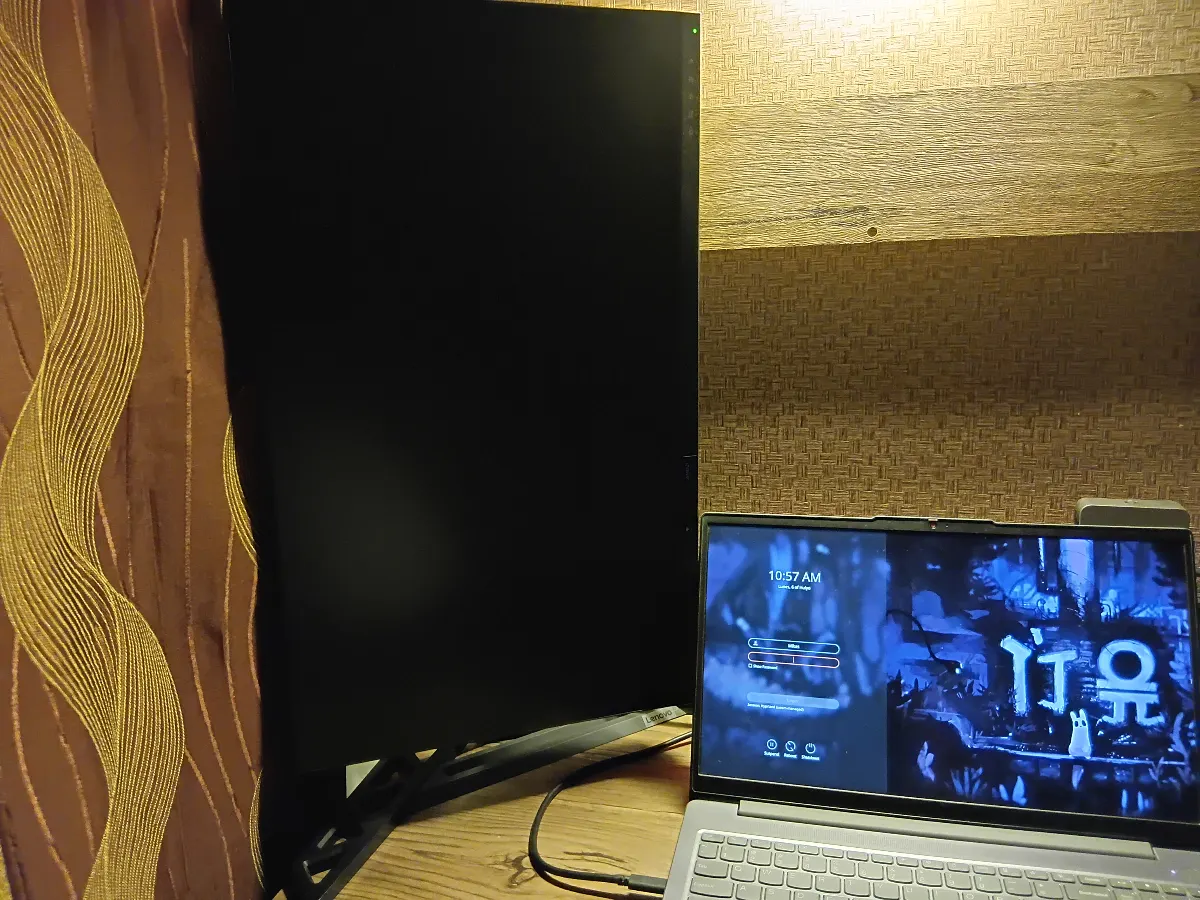
Then boom! Finally. No more head tilting when typing my password.
Keeping It Safe From Updates
The problem: /usr/share/sddm/scripts/Xsetup belongs to the sddm package. Every system update (pacman -Syu) can overwrite it.
First Try: Pacman Hook
My first instinct was to keep using the stock Xsetup path and patch it back after every update with a Pacman hook:
# /etc/pacman.d/hooks/sddm-xsetup.hook
[Trigger]
Operation = Install
Operation = Upgrade
Type = Package
Target = sddm

[Action]
Description = Re-apply SDDM custom monitor setup...
When = PostTransaction
Exec = /bin/sh -c 'printf "#!/bin/sh\n[ -f /etc/sddm/scripts/monitor-setup.sh ] && . /etc/sddm/scripts/monitor-setup.sh\n" > /usr/share/sddm/scripts/Xsetup'
While it worked, modifying files inside /usr managed by the package manager isn't the best practice. It triggers integrity warnings when running pacman -Qk and adds unnecessary complexity.
The Cleaner Way: DisplayCommand
SDDM actually offers a built-in configuration key that avoids this issue entirely: DisplayCommand. Instead of patching system scripts, you can tell SDDM to run your custom script from /etc/ via a simple drop-in config file:
# /etc/sddm.conf.d/monitor.conf
[X11]
DisplayCommand=/etc/sddm/scripts/monitor-setup.sh
This maps to the exact same lifecycle point as Xsetup (running as root before the login dialog appears), but it keeps your files completely in /etc/ where the package manager won't touch them.
To make this work, create the script directory if it doesn't exist, place your dynamic one-liner in the script file, and remember to make it executable:
sudo chmod +x /etc/sddm/scripts/monitor-setup.sh
/etc/sddm/scripts/monitor-setup.sh
#!/bin/sh
xrandr | grep " connected" | grep -vE "eDP|LVDS|LCD" | awk '{print $1}' | while read m; do
    xrandr --output "$m" --off
done
Result
- SDDM login screen shows only on the laptop panel
- Second monitor stays dark until Hyprland takes over
- Survives updates automatically without relying on custom pacman hooks
- Works with various monitor setups without hardcoding specific external display names
Note: This workaround relies on SDDM running its default X11 backend (which is common, even when launching a Wayland desktop session like Hyprland). If you have explicitly configured SDDM to run on a Wayland greeter,
DisplayCommandandxrandrcommands will not apply.
If you have any suggestions, HMU 😉